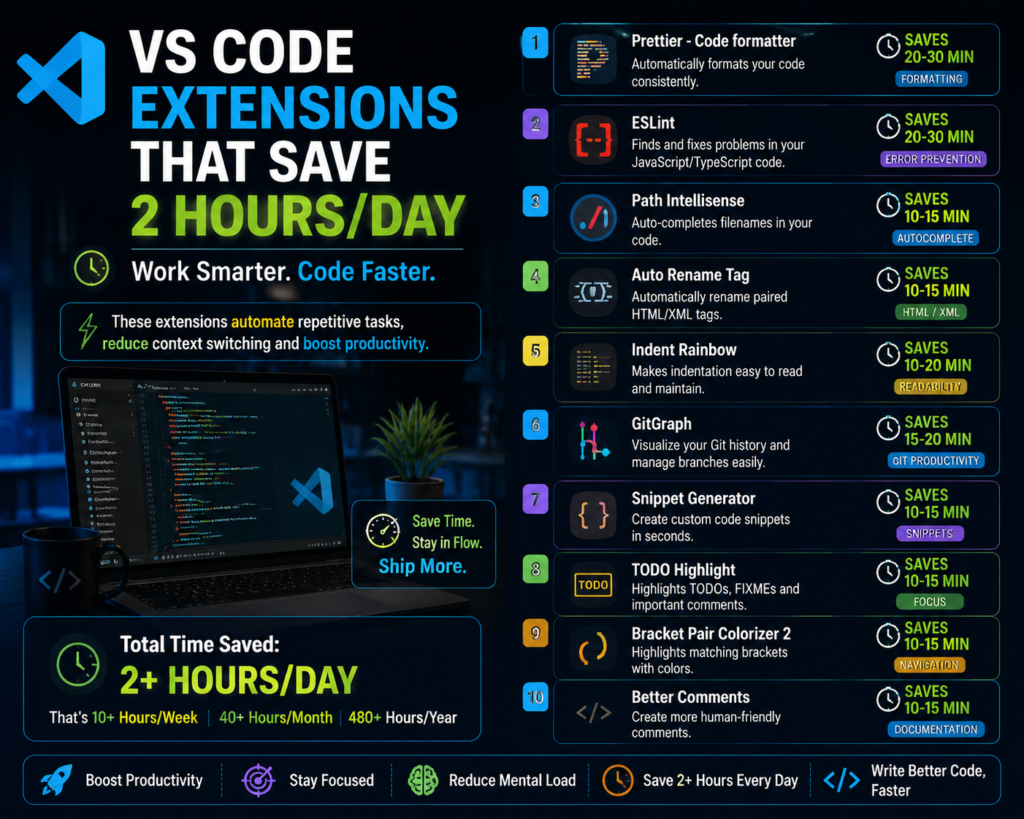
VS Code Extensions That Save 2 Hours a Day for Developers
Best VS Code Extensions That Improve Coding Speed and Developer Productivity
VS Code extensions that save time are becoming essential for modern developers who want to write cleaner code, debug faster, and complete projects more efficiently.
Writing code is only one part of software development. Developers also spend hours fixing errors, formatting files, searching documentation, managing Git, testing applications, and organizing projects.
The right Visual Studio Code extensions can automate many repetitive tasks and help developers save valuable time every day.
Whether you are a beginner learning programming or an experienced developer building professional applications, these extensions can improve your workflow significantly.
At Fast Learning Technologies, we focus on practical development skills and tools that help learners become more productive and industry-ready.
In this article, we will explore the best VS Code extensions that save time and help developers work smarter.
Why VS Code Extensions Are Important for Developers
Visual Studio Code is already one of the most popular code editors because of its flexibility and customization options.
Extensions allow developers to add extra features such as:
- Automatic code formatting
- Error detection
- AI assistance
- Faster navigation
- Better debugging
- Git management
- Productivity improvements
Instead of spending hours completing repetitive tasks, developers can automate many activities using the right extensions.
1. GitHub Copilot – AI Coding Assistant
GitHub Copilot is one of the most popular AI tools for developers.
It helps programmers write code faster by suggesting complete lines, functions, and solutions.
How It Saves Time:
- Generates code suggestions
- Explains programming concepts
- Helps fix errors
- Creates repetitive code automatically
- Improves learning speed
For developers working on large projects, AI assistance can reduce development time significantly.
2. Prettier – Automatic Code Formatter
Prettier is one of the most useful VS Code extensions for maintaining clean code.
Developers often waste time manually formatting files. Prettier automatically formats code according to standard rules.
Supports:
- JavaScript
- TypeScript
- HTML
- CSS
- JSON
- Markdown
Benefits:
- Cleaner code
- Consistent formatting
- Faster development
- Better team collaboration
One simple extension can remove many small formatting tasks from your daily workflow.
3. ESLint – Find Code Problems Faster
ESLint helps developers identify coding mistakes before they become bigger issues.
It analyzes JavaScript and TypeScript code and highlights possible problems.
ESLint Helps With:
- Finding errors
- Improving code quality
- Following coding standards
- Reducing debugging time
Instead of discovering mistakes after running an application, developers can fix problems while writing code.
4. Live Server – Instant Website Preview
Frontend developers often need to check website changes repeatedly.
Live Server makes this process faster.
When you update HTML, CSS, or JavaScript files, the browser automatically refreshes.
Benefits:
- Faster website testing
- Real-time preview
- Easy frontend development
- Better learning experience
It is one of the first extensions beginners should install.
5. Auto Rename Tag – Faster HTML Editing
Changing HTML tags manually can waste time.
Auto Rename Tag automatically changes the closing tag when you edit an opening tag.
Example:
Changing:
<h1>Hello</h1>
Automatically updates both tags.
Benefits:
- Faster HTML editing
- Fewer mistakes
- Improved productivity
Small automation features like this save developers many minutes every day.
6. Error Lens – See Errors Immediately
Error Lens improves the default error display in VS Code.
Instead of checking error messages separately, it displays problems directly beside your code.
Benefits:
- Faster debugging
- Clear error visibility
- Quick problem solving
Developers can identify and fix issues without searching through multiple panels.
7. Thunder Client – Lightweight API Testing
Many developers use APIs while building applications.
Thunder Client is a lightweight alternative to API testing tools.
It allows developers to send API requests directly inside VS Code.
Features:
- Test APIs
- Check responses
- Manage collections
- Debug backend issues
It saves time by keeping API testing inside the development environment.
8. GitLens – Better Git Understanding
GitLens improves Git features inside VS Code.
It helps developers understand who changed code, when changes happened, and why modifications were made.
Features:
- File history
- Code authorship
- Commit information
- Branch comparison
GitLens is especially useful for developers working in teams.
9. Docker Extension – Manage Containers Easily
Docker is widely used in modern software development.
The Docker VS Code extension helps developers manage containers without constantly switching between tools.
Features:
- View containers
- Manage images
- Run commands
- Monitor applications
It makes Docker workflows easier for developers working with cloud and DevOps projects.
10. Path Intellisense – Faster File Navigation
Large projects often contain hundreds of files.
Path Intellisense automatically suggests file paths while importing files.
Benefits:
- Faster imports
- Fewer typing mistakes
- Better project navigation
This simple extension can save time during everyday development.
Bonus VS Code Extensions Developers Should Try
1. Code Spell Checker
Helps find spelling mistakes in:
- Comments
- Documentation
- Variable names
2. Material Icon Theme
Improves file visibility with better icons.
3. Better Comments
Creates organized and readable code comments.
4. REST Client
Allows developers to test APIs directly inside VS Code.
How These VS Code Extensions Improve Developer Productivity
Time is one of the most valuable resources for developers.
A developer may spend hours every week on:
- Fixing formatting issues
- Searching files
- Debugging errors
- Testing APIs
- Writing repetitive code
The right extensions reduce these small tasks and allow developers to focus on important work.
Productivity is not about typing faster.
It is about removing unnecessary work.
Best VS Code Extension Setup for Beginners
If you are starting your coding journey, install these first:
For Web Development:
- Live Server
- Prettier
- ESLint
- Auto Rename Tag
- Path Intellisense
For Professional Development:
- GitLens
- Docker
- GitHub Copilot
- Error Lens
- Thunder Client
These tools create a professional development environment from day one.
How Fast Learning Technologies Helps Developers Build Better Skills
Learning programming is not only about understanding syntax.
Professional developers need to know:
- Coding practices
- Development tools
- Debugging methods
- Version control
- Industry workflows
Fast Learning Technologies helps learners develop practical technology skills that match modern industry requirements.
By learning the right tools and building real projects, students can improve confidence and career opportunities.
Final Thoughts
The right VS Code extensions can save developers hours every week by automating repetitive tasks and improving workflow.
From AI coding assistants to debugging tools, these extensions help developers write better code faster.
The future of development is not just about writing code.
It is about using smart tools to build solutions efficiently.
Start exploring these VS Code extensions and create a faster, smarter development workflow.
Frequently Asked Questions (FAQs)
1. Which VS Code extension saves the most time?
AI assistants like GitHub Copilot, along with automation tools like Prettier and ESLint, can save developers significant time.
2. Are VS Code extensions free?
Many VS Code extensions are completely free, while some advanced tools offer premium features.
3. What VS Code extensions should beginners install?
Beginners should start with Live Server, Prettier, Auto Rename Tag, GitHub Copilot, and GitLens.
4. Can VS Code extensions improve coding skills?
Yes. Extensions can help developers learn faster, identify mistakes, and follow professional coding practices.
5. How many VS Code extensions should developers install?
Developers should install useful extensions only. Too many extensions can slow down the editor and create unnecessary distractions.